Export Your Data
Download a portable archive of your Teak cards and original files
Teak can prepare a portable ZIP archive of your cards and the original files attached to them, with a bookmarks file your browser can import and a spreadsheet of every card. Exports are available from Settings in the web app.
Start an Export
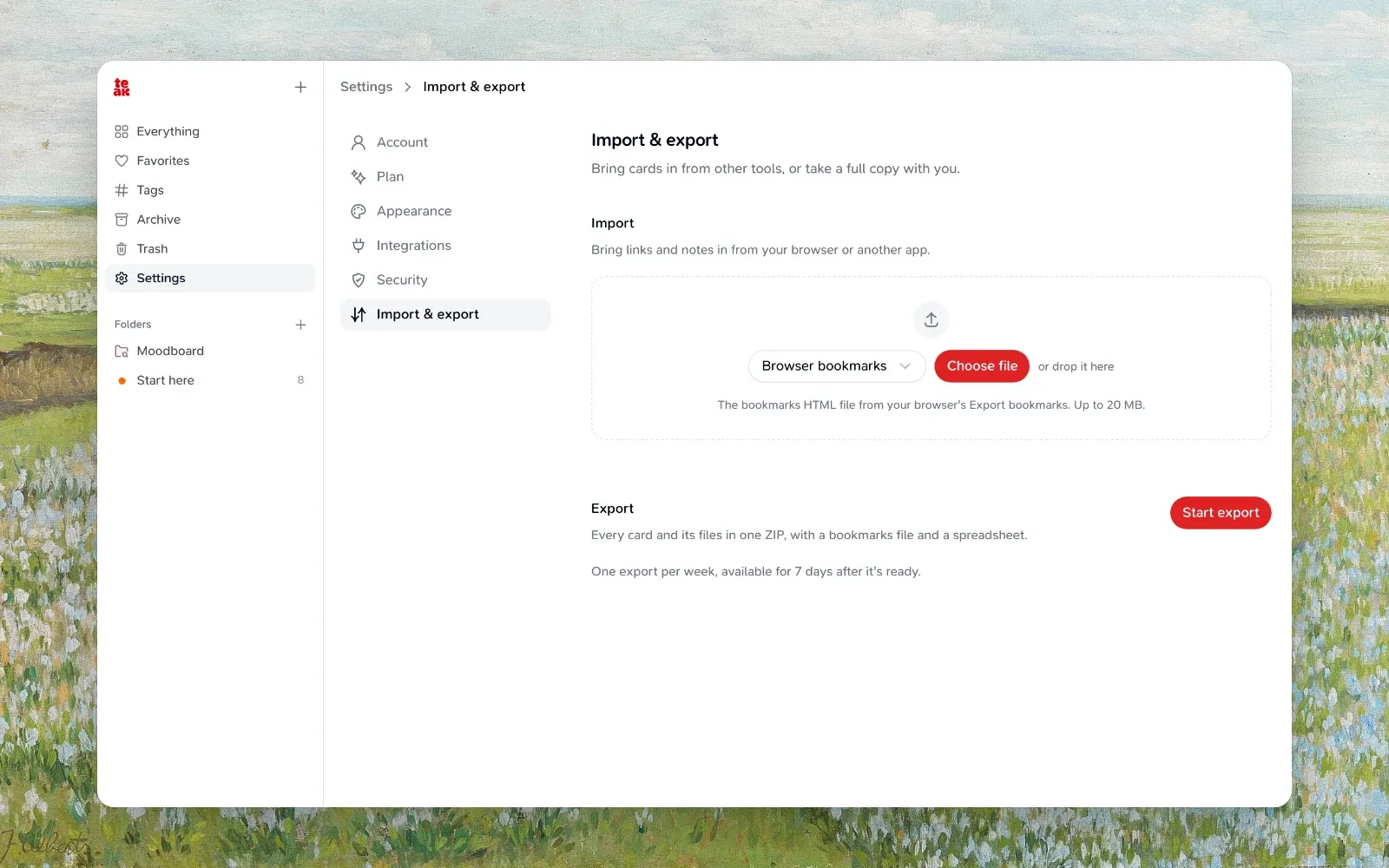
Open Export
Open the Teak web app and go to Settings → Import & export.
Start export
Switch to the Export tab and choose Start export, then keep working while Teak prepares the archive in the background.
Download
When the export is ready, choose Download archive.
You can cancel an export while it is still preparing. Canceled and failed exports do not count toward your weekly export limit.
What the Archive Includes
Each export is a ZIP with every card outside Trash, archived cards included:
| File | What it holds |
|---|---|
cards.json |
Every card with its type, content, title, link, notes, tags, AI tags and summary, folder names, favorite, pinned and archive state (a pinned card’s pinPosition keeps its place among the pins), when a link was marked done (completedAt), a link’s highlights (each quote, note, createdAt and whether it was found in the saved article, anchored), and dates: createdAt (first saved) and savedAt (last saved, later when a link was saved again). Teak imports this file back, keeping both, so the library comes back in the same order. |
files/ |
The original file attached to each image, video, audio, and document card. |
bookmarks.html |
Your link cards in the bookmark format Chrome, Firefox, and Safari import. Links in no folder come first; each folder is its own bookmarks folder, and a link in several folders appears in each. Your tags are kept where the browser supports them. |
cards.csv |
One row per card for Excel, Numbers, or Google Sheets: id, type, title, url, content, notes, tags, aiTags, aiSummary, folders, isFavorited, isArchived, isPinned, createdAt, for text saved from a page sourceUrl and sourceTitle, and highlights. Tags and folders are separated by commas, and highlights’ quotes by a blank line. |
manifest.json |
When the archive was made, its card and file counts, and its format version (schemaVersion 2). |
cards.csv is safe to open in a spreadsheet: a cell that starts with =, +, -, or @ begins with an apostrophe so it shows as text instead of running as a formula.
Importing the archive adds the exported cards and included files that satisfy import limits, back in their folders and with their archive state and titles; cards with missing or oversized (>20 MiB) files fail to import.
What Is Not Included
Exports focus on portable library content: Trash, transcripts, generated previews, and account data are not included. If an original file cannot be read, its card is still included in the archive, but the card cannot be restored on re-import.
Limits and Availability
| Limit | Details |
|---|---|
| Frequency | One successful export every 7 days. |
| Active jobs | One export can prepare at a time. |
| Download window | Ready archives stay available for 7 days. |
| Library size | Exports support up to 10,000 cards outside Trash or an estimated 5 GB archive. |
If your latest export is still available, download it from Settings → Import & export. After it expires, you can start a new export when your weekly quota allows it.
Troubleshooting
I see "Available in..."
You recently completed an export. Wait for the shown time, then start another one.
My export failed
Open Settings → Import & export and try again. Failed exports do not count toward the weekly limit.
The archive is too large
If your library is over the export limit, delete unneeded cards or permanently remove old trash items, then try again.