Let your AI agent read and write your Teak library with the CLI and MCP
Connect Claude, ChatGPT, Codex or Cursor to Teak in a minute, so your assistant can save what you find and search what you've kept.
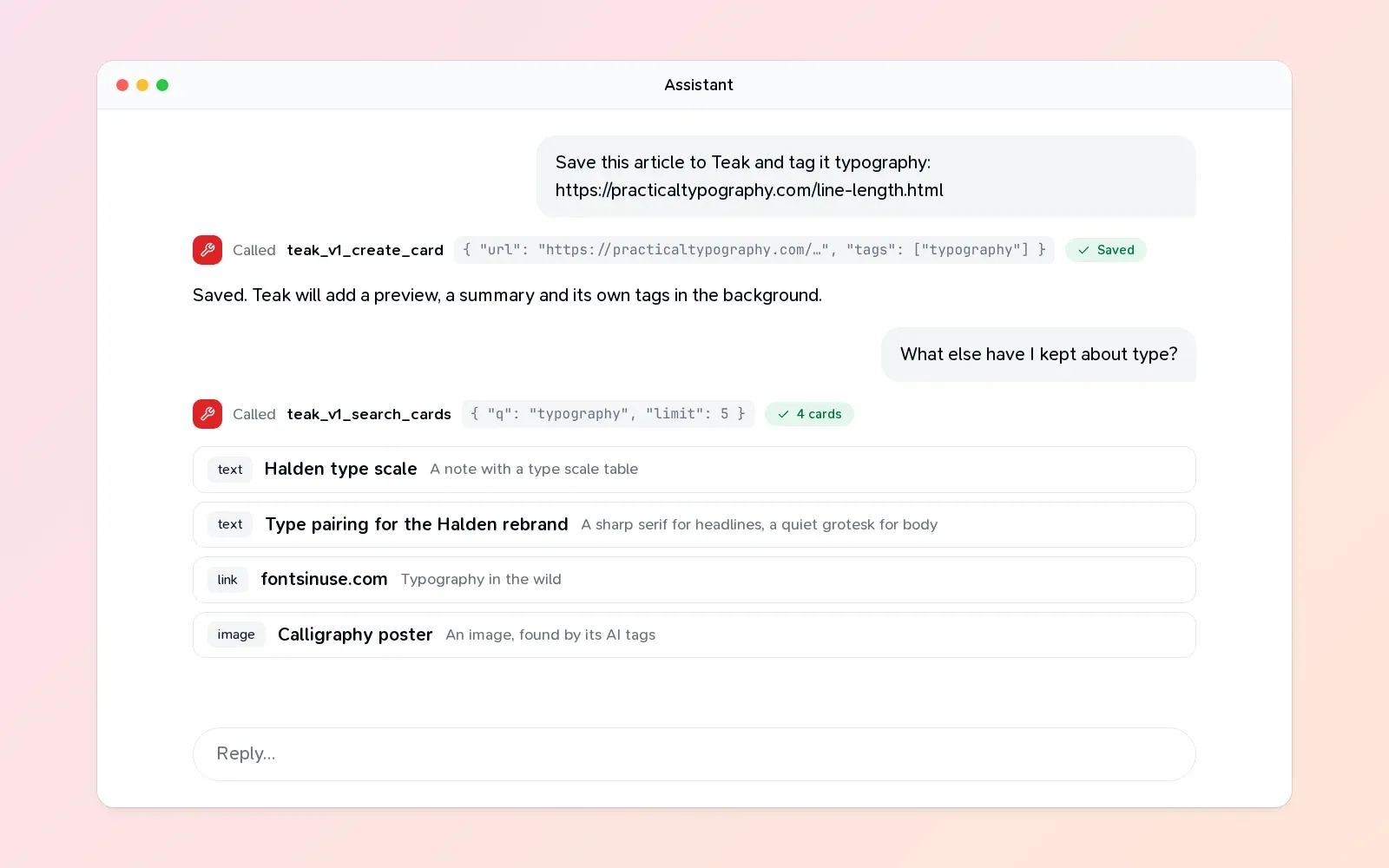
More and more of my research happens in conversation with an AI assistant. It’s good at finding things, and bad at remembering them: when the chat ends, so does everything in it.
Teak is a good place for what’s worth remembering. So I made sure an assistant can use it the same way I do. It can save a link you found together, search the references you collected last year, put cards in a folder, or read a PDF you saved, all with your permission and nothing more.
There are four ways in, and they all reach the same library.
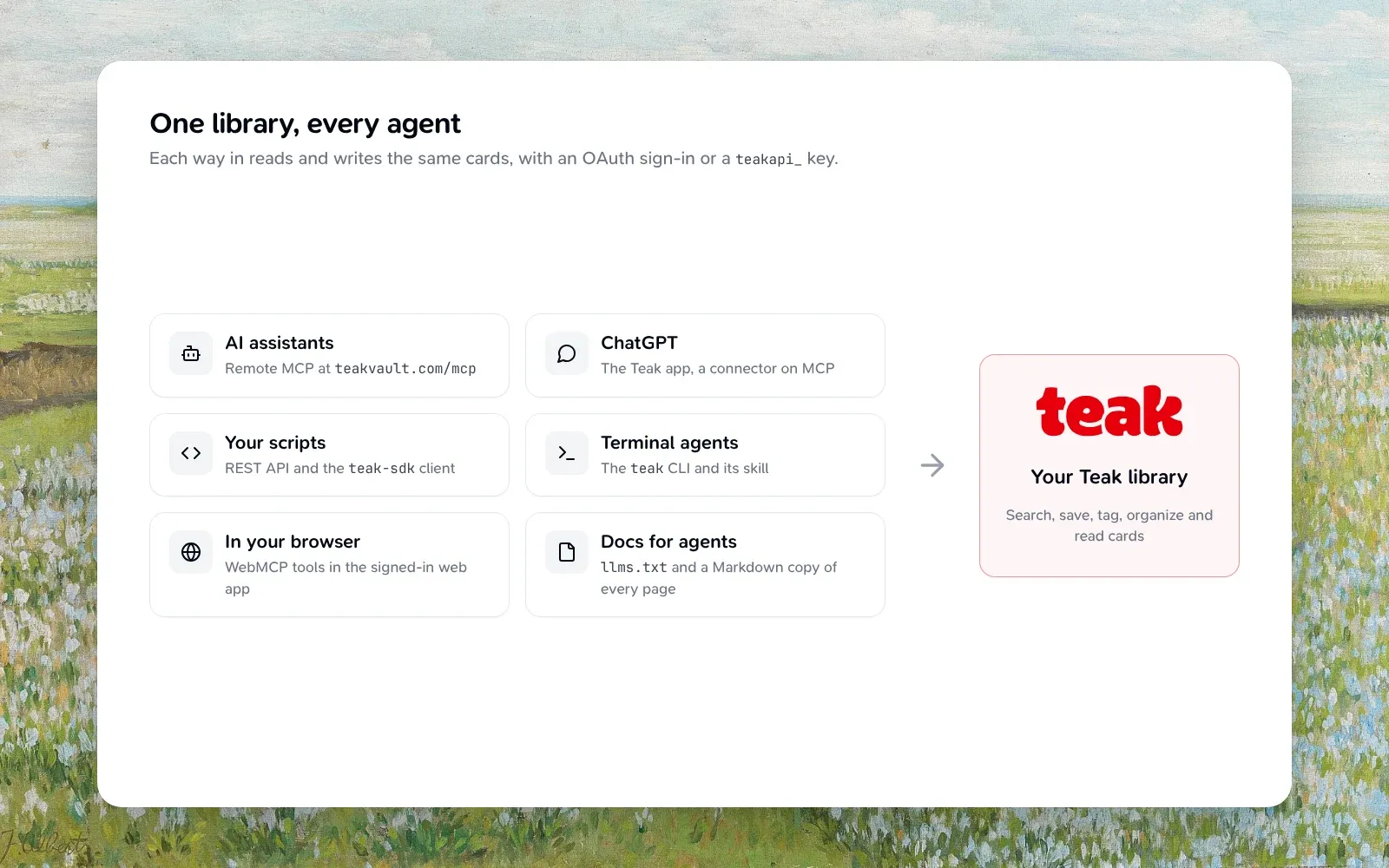
MCP, for assistants
The Model Context Protocol is how most AI assistants connect to outside tools. Teak runs a remote MCP server at https://teakvault.com/mcp, so there’s nothing to install.
In Claude Code:
claude mcp add --transport http teak https://teakvault.com/mcpIn Codex:
codex mcp add teak --url https://teakvault.com/mcpCursor and VS Code have one-click install links in the MCP guide, and ChatGPT can add Teak as a custom connector.
The first time the assistant uses Teak, your browser opens and asks you to sign in and approve it. The assistant never sees your password, and it gets a token that works only for Teak’s MCP server, nowhere else.
Once connected, the assistant has tools for nearly everything you can do in the app: list, search and fetch cards, find similar ones, create and update cards, favorite or archive them, read a document’s full text or a video’s transcript, manage tags and folders, and work with highlights. Each tool says whether it only reads, changes something, or deletes, so a careful client can ask you first before anything destructive.
Some things I ask an assistant to do with Teak:
- “Save this article and tag it
typography.” - “What have I saved about onboarding flows? Summarize the three most useful.”
- “Find my references for the Halden project and put them in a folder.”
- “Read the PDF I saved last week and pull out the pricing table.”
The CLI, for the terminal
If you live in a terminal, or your agent does, the teak command does the same things:
npm i -g teak-cli
teak login
teak add https://example.com --tags research
teak search "blue buttons"
teak content <card-id>
teak login signs in through your browser, the same as MCP. For scripts and CI, set TEAK_API_KEY instead and skip the browser entirely. Add --json to any command for output a script can read.
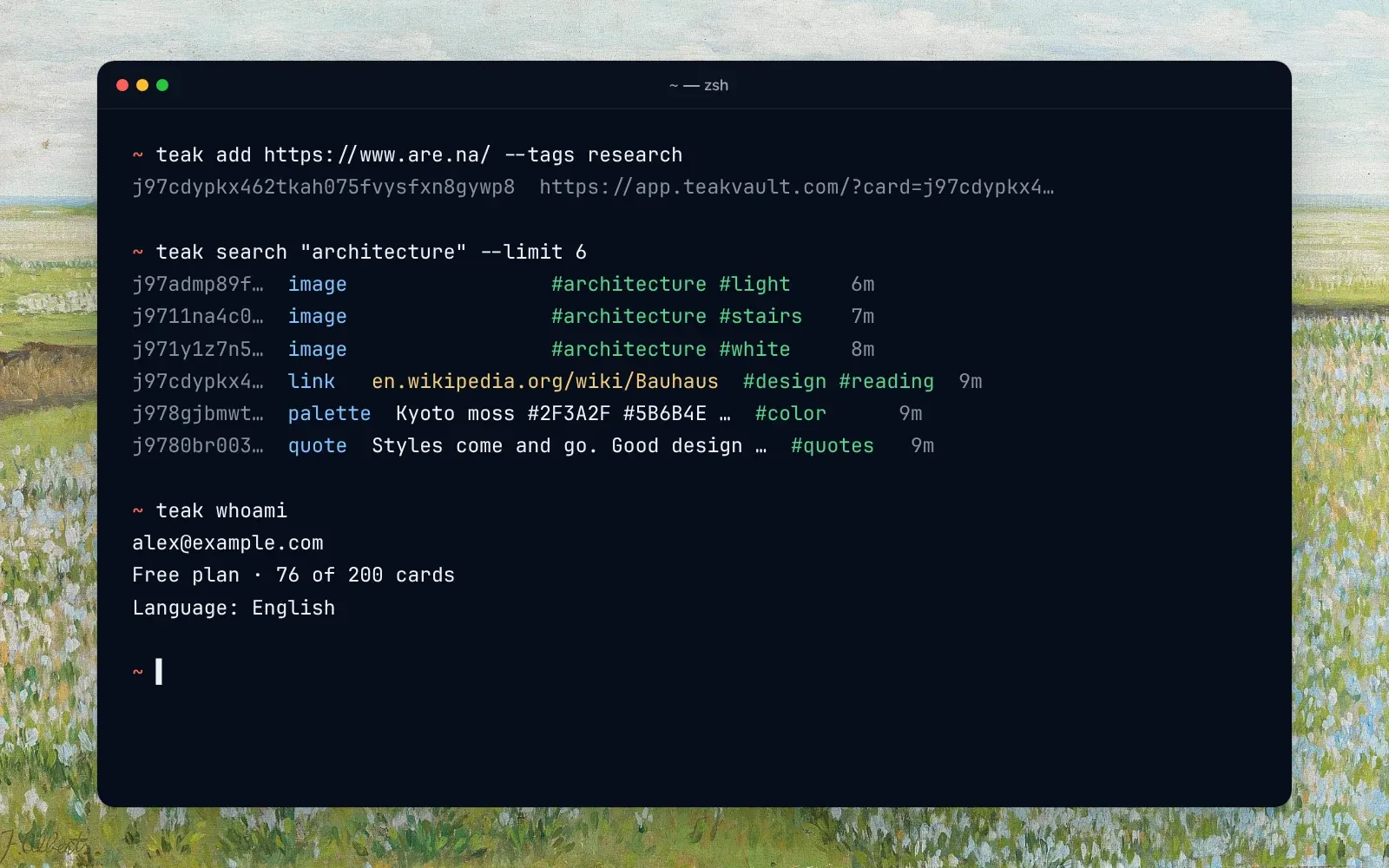
teak content is the one I use most with agents: it prints a card’s full text, so an agent can read a saved PDF, an article or a transcript and work with it.
A skill, so agents know how
Connecting is half the job. An agent also needs to know how Teak works: that search takes tag: and type: filters, that saving a link twice moves it to the top instead of duplicating it, and which tool to reach for. That’s what Teak’s agent skill is for:
npx skills add praveenjuge/teak --skill teakIt teaches an agent to use Teak through whichever way in it has: MCP, the CLI, the API or the SDK.
The API and SDK, for everything else
Under all of this is a REST API at https://teakvault.com/api/v1, with an OpenAPI description, and a TypeScript SDK, teak-sdk, with no runtime dependencies. If you’re building your own integration, start with the API quickstart.
One rule keeps these in step: anything the API can do, MCP, the SDK and the CLI can do too, and a test fails the build if one of them falls behind.
You stay in control
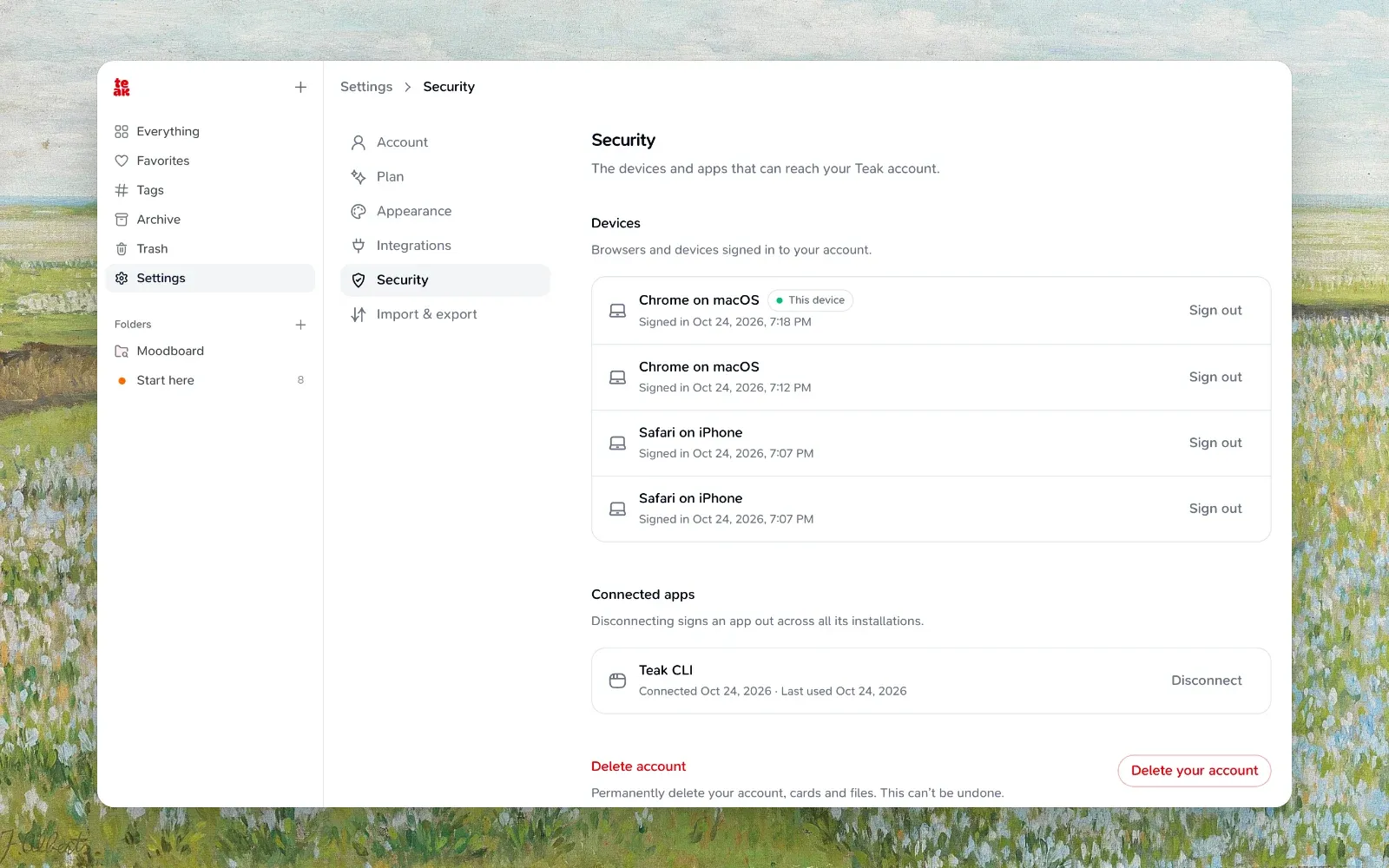
Every connection shows up in Settings → Security → Connected apps. Disconnect one and its access stops immediately, including any MCP session already open. API keys live in Settings → Integrations, up to ten at a time, and you can revoke any of them.
An assistant with a good memory is a lot more useful than one without. I’d rather that memory be a library I can see, search and clean up myself, and Teak is that library.